> ## Documentation Index
> Fetch the complete documentation index at: https://cashfreepayments-d00050e9-theme-update.mintlify.site/llms.txt
> Use this file to discover all available pages before exploring further.
# Add an Agent or Auditor
> Learn how to add users with Agent or Auditor roles for Video KYC in the merchant dashboard.
Use the merchant dashboard to add users with the **Agent** or **Auditor** role for the Video KYC process. Agents conduct KYC sessions, while auditors review session logs and ensure compliance. This article describes how to add users and assign permissions.
## Add an agent or auditor
To add an agent or auditor:
1. Log in to the [Merchant Dashboard](https://merchant.cashfree.com/auth/login).
2. Go to **Secure ID > Video KYC > Agents & Auditors**.
3. Select **+ Add Agent/Auditor**.
4. Under **Role/Permission**, select **Agent** or **Auditor**.
5. In the **Name** field, enter the user’s full name.
6. In the **Work email address** field, enter the user’s email.
7. (Optional) In the **Phone number** field, enter the user’s contact number.
8. Select **Add**.
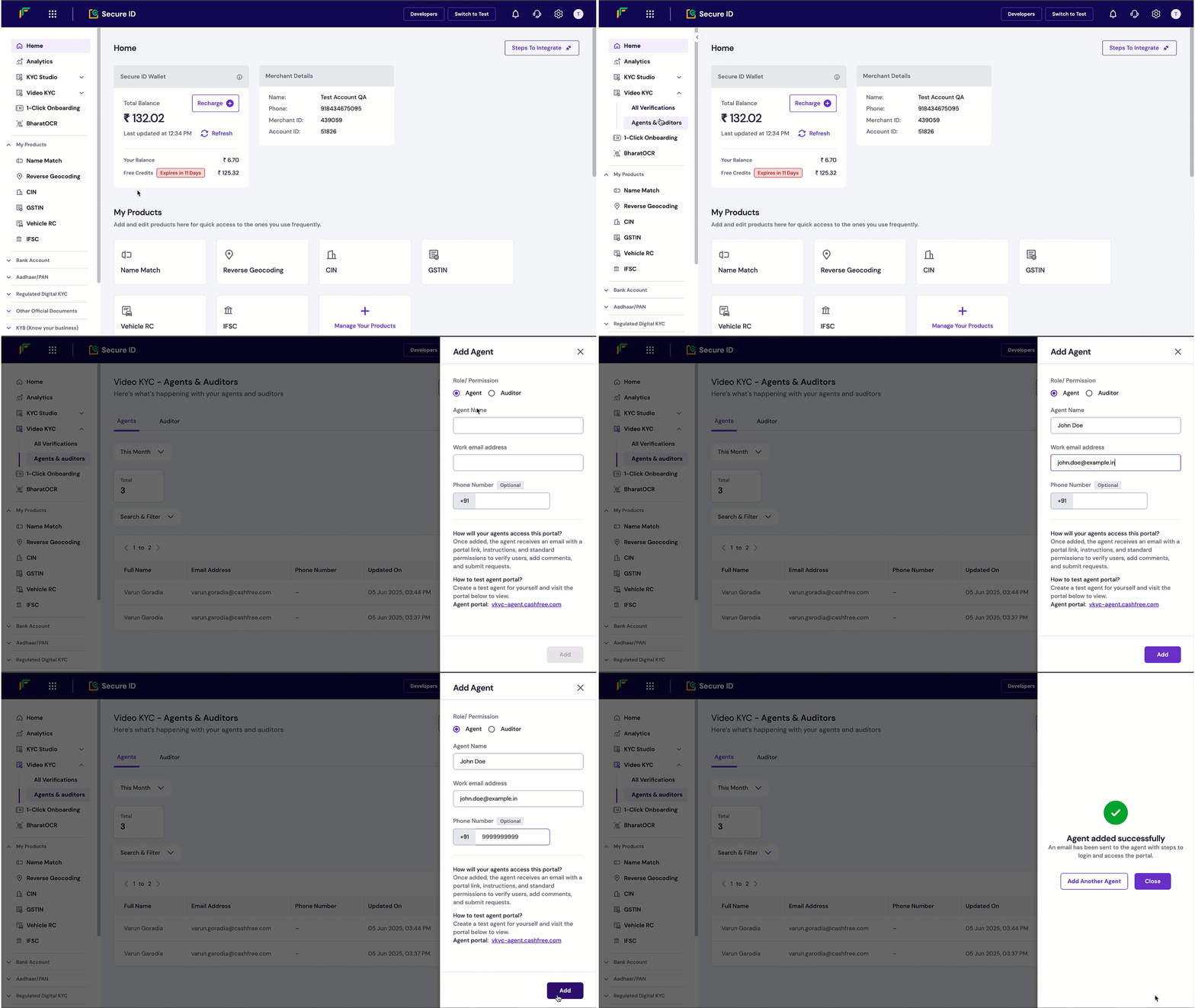 After the user is added, they receive an email with a portal link, setup instructions, and access permissions. Agents can verify users, add comments, and submit requests. Auditors can monitor and review sessions.
**Note:**\
To test the experience, create a test agent and a test auditor account.
* To view the agent portal, go to [vkyc-agent.cashfree.com](https://vkyc-agent.cashfree.com/).
* To view the auditor portal, go to [vkyc-auditor.cashfree.com](https://vkyc-auditor.cashfree.com/).
After the user is added, they receive an email with a portal link, setup instructions, and access permissions. Agents can verify users, add comments, and submit requests. Auditors can monitor and review sessions.
**Note:**\
To test the experience, create a test agent and a test auditor account.
* To view the agent portal, go to [vkyc-agent.cashfree.com](https://vkyc-agent.cashfree.com/).
* To view the auditor portal, go to [vkyc-auditor.cashfree.com](https://vkyc-auditor.cashfree.com/).